Password protect a PDF document in PHP
Posted in : Maintenance | Posted by : Cristina Mailat
October 7th, 2008 | No comments
download the library used: Protect PDF in PHP
Check bellow the solution I found for on the fly protecting a PDF file in PHP. For resolving this problem I wanted a FREE librar. Download from above the libraries and use the code bellow for password protect a PDF file using PHP.
<?php
function pdfEncrypt ($origFile, $password, $destFile){
//include the FPDI protection http://www.setasign.de/products/pdf-php-solutions/fpdi-protection-128/
require_once(’fpdi/FPDI_Protection.php’);
$pdf =& new FPDI_Protection();
// set the format of the destinaton file, in our case 6×9 inch
$pdf->FPDF(’P', ‘in’, array(’6′,’9′));
//calculate the number of pages from the original document
$pagecount = $pdf->setSourceFile($origFile);
// copy all pages from the old unprotected pdf in the new one
for ($loop = 1; $loop <= $pagecount; $loop++) {
$tplidx = $pdf->importPage($loop);
$pdf->addPage();
$pdf->useTemplate($tplidx);
}
// protect the new pdf file, and allow no printing, copy etc and leave only reading allowed
$pdf->SetProtection(array(), $password, ”;
$pdf->Output($destFile, ‘F’);
return $destFile;
}
//password for the pdf file (I suggest using the email adress of the purchaser)
$password = “info@domain.com”;
//name of the original file (unprotected)
$origFile = “book.pdf”;
//name of the destination file (password protected and printing rights removed)
$destFile =“book_protected.pdf”;
//encrypt the book and create the protected file
pdfEncrypt($origFile, $password, $destFile );
?>
How to lock your computer using command line
Posted in : Maintenance | Posted by : Cristina Mailat
August 11th, 2008 | 2 comments;
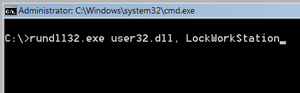
Step 1 - Open a DOS promot for launching a special command line. One simple way you can do it would be by clicking Start/Run, typing CMD.
Step 2 - Enter the command line for locking your station:
rundll32.exe user32.dll, LockWorkStation
and your computer will be locked.

How to lock your computer using the screen saver
Posted in : Maintenance | Posted by : Cristina Mailat
August 10th, 2008 | No comments
The computer lock can be achived in many ways, here is bellow an example which is using the native screen saver possibilities. For a more professional option check the 14 days trial of the usb lock software and folder lock software.
Bellow you find the procedure for installing a password-protected screen saver. Please make sure you have selected a screensaver and it is set to start within 15 minutes of inactivity.
Step 1 - Right click anywhere on your desktop (except on an icon) which will display the following panel:

Step 2 - Highlight the <Properties> selection (as shown above ) and click it with your left mouse button.
This will display the following panel:

Step 3 - Click on the <Screen Saver> tab on the upper center of this panel.
Pick a screen saver from the screen saver drop down list (highlighted in green).

Step 5 - Select a <Wait> time of 15 minutes or less by clicking on the up and down arrows in the <Wait> box.
Step 6 - Click on the <On resume, password protect> check box.
How to lock down the computer via a shortcut
Posted in : Maintenance | Posted by : Cristina Mailat
August 10th, 2008 | No comments
If you don’t have a keyboard with a Window key or simply don’t like the keyboard method, then here’s how you can make a desktop shortcut to lock your computer.
Step 1 - Right click an empty area of your desktop, choose New/Shortcut.

Step 2 - Copy-and-Paste the command line: rundll32.exe user32.dll, LockWorkStation as shown below and press the Next button.

Step 3 - Insert the shortcut name or label <Lock Computer> as shown below. Press the <Finish> button. That’s it.

Step 4 - You should now is an Icon on your desktop labeled <Lock Computer>. Double-click this Icon to LOCK your computer. You will see a pop-up window displaying the Unlock Computer Password Box.

You can also lock a PC via a bat file:
This is similar to a Windows shortcut method. But it’s a DOS version. If you’ve never created a bat (batch) file, but would like to try this method, simply open a new text file (such as with Notepad) and type the following commands:
@echo off
rundll32.exe user32.dll, LockWorkStation
cls
Save the file with a .bat extension, such as Lock.bat, and you’re done. Double click to make the file run.
How to lock down Windows Server 2008
Posted in : Maintenance | Posted by : Cristina Mailat
August 9th, 2008 | No comments
You can use Group Policies to lock down a Terminal Server session on a Microsoft Windows Server 2008-based or Microsoft Windows 2000-based computer. With the following settings, even the administrator account will have restricted access. It is highly recommended that you create a new organizational unit instead of modifying the policies on an existing one.
Note: The use of these policies does not guarantee a secure computer, and you should use them only as a guideline. ID Security Suite offers you also a usb lock, device lock and folder lock solution.
The Dsacls.exe tool
Dsacls.exe is a command-line tool that you can use to query the security attributes and to change permissions and security attributes of Active Directory objects. It is the command-line equivalent of the Security tab in the Windows Active Directory snap-in tools such as Active Directory Users and Computers and Active Directory Sites and Services. You can use Dsacls.exe to lock out Terminal Services end-users from files and folders on a Windows Server 2003-based computer or a Microsoft Windows 2000-based computer.
Check also the article: How to use Dsacls.exe in Windows Server 2003 and Windows 2000 and the attached PDF document to this post.
How to lock down the computer via keyboard
Posted in : Maintenance | Posted by : Cristina Mailat
August 7th, 2008 | 1 comment
ID USB Lock Key is a security program meant to protect your computer from unauthorized users. It denies access, by providing a security block-screen which can be unblocked with the USB stick where you have the key generated by the program. You can download a 14 days trial version or you can get your hands on license on the safe order page.
How to lock the computer via the Keyboard (Windows XP/Vista Only)
The easiest way to lock Windows XP is by simply pressing the Windows logo key and the letter L (for Lock) on a Microsoft Natural Keyboard or any other compatible keyboard that includes the Window key. Doing so will pop-up the Unlock Computer Password box. Look on the bottom row and to the left of the spacebar on your keyboard. Do you see a key with the flying Windows logo? Depending on your keyboard you might also have one to the right of the spacebar.

How to lock the computer via the Windows Security Screen (Windows 2000/XP/Vista)
Users running Windows 2000, Windows XP or Windows Vista can lock their computer using the Task Manager.
Step 1 - On your computer keyboard, press the <Ctrl+Alt+Delete> keys at the same time.
Step 2 - The Windows Security window should appear.
Step 3 - Click the Lock Computer option or button to LOCK your computer.
Step 4 - You will see a pop-up window displaying the Unlock Computer Password Box.
You can also use the following keyboard shortcuts with a Microsoft Natural Keyboard or any other compatible keyboard that includes the Windows logo key and the Application key.
Windows logo key - Display or hide the Start menu
Windows logo key+L - Lock the computer
Windows logo key+BREAK - Display the System Properties dialog box
Windows logo key+D - Show the desktop
Windows logo key+M - Minimize all windows
Windows logo key+SHIFT+M - Restore minimized windows
Windows logo key+E - Open My Computer
Windows logo key+F - Search for a file or folder
CTRL+Windows logo key+F - Search for computers
Windows logo key+F1 - Display Windows Help
Windows logo key+R - Open the Run dialog box
Windows logo key+U - Open Utility Manager
Fastlink2 Launches Internet ID Security Suite
Posted in : Maintenance | Posted by : Cristina Mailat
January 3rd, 2008 | No comments
The ID Security Suite, developed by Fastlink2, provides solutions to a myriad of security issues that plague both business and home computer applications by offering a wide array of software packages designed to protect PC users from unauthorized use or outside intrusion.
ID Security Suite provides low cost solutions to Internet security issues that plague home and business computers. The company, Fastlink2, recognized that there is a desperate need for PC protection from a variety of forces that would attempt unauthorized access to gain information from company or home computers. Consequently they have developed a suite of applications that will protect computers from hackers, spy-ware, unsolicited invasions and a variety of other internal or external threats to computer file security.
Encryption, password access, protection of critical files, computer optimization and maintenance as well as protection and security tools have been developed by the programmers at Fastlink2.
Headquartered in Leverkusen, Germany, the staff has applied their technical expertise to develop simple, efficient programs that provide users with an array of software to address any security threats that are being faced. These software programs are characterized by user-friendly interfaces and installation wizards that enable all users from the novice to the professional to take maximum advantage of the numerous features that are provided.
Many of the software applications features file recovery modules and also have erase features that prevent the hard disk from being searched for deleted files. Additionally, password protection and encryption features prevent unauthorized access to privileged information.
In addition to the ID Security Suite, Fastlink2 maintains a forum which can respond to specific user questions and they offer product support and Internet updates for their complete line of software.
Visit http://www.idsecuritysuite.com for more details or contact Cristina Mailat directly.
Download the press kit containing:
- press release in doc and pdf format
- applications screenshots and artworks
Click here to download the English press kit.
Top 10 Phishiest Countries in Year 2007
Posted in : Maintenance | Posted by : Cristina Mailat
December 19th, 2007 | No comments
Based on our intern data from ID AntiPhishing we have tried to establish a Top 10 Phishiest Countries in 2007. We have correlate our data with the data provided in Netcraft Toolbar and we have created a statistic for year 2007. Personally my biggest surprise is the position of Israel and Koreea. The good surprise is the low position in this “top”for Romania.
| Country |
Total sites reported |
Phishing incidents found |
% of known phishing sites |
Incidents to sites reported ration |
| Israel |
70106 |
88239 |
23.9 |
1 in 0 |
| Korea (South) |
1495720 |
37327 |
10.1 |
1 in 40 |
| China |
2494770 |
24170 |
6.5 |
1 in 103 |
| Russian Federation |
713199 |
18832 |
5.1 |
1 in 37 |
| Romania |
100559 |
11703 |
3.2 |
1 in 8 |
| Mexico |
115727 |
8499 |
2.3 |
1 in 13 |
| Turkey |
388997 |
7424 |
2 |
1 in 52 |
| Thailand |
116203 |
4879 |
1.3 |
1 in 23 |
| India |
140401 |
3744 |
1 |
1 in 37 |
| Kazakhstan |
5723 |
2780 |
0.8 |
1 in 2 |

Keeping your children safe on the internet
Posted in : Maintenance | Posted by : Cristina Mailat
December 18th, 2007 | 1 comment
The children of today have opportunities past generations could only dream of. The movies of the past have become the reality of today. With the advent of the internet, children are now able to bring the world closer to them, develop friendships across the globe, and having instant information at their fingertips. With this technology also come concerns for the children’s safety. The best way to keep you children safe is to use parental controls. ID Parental Advisor can oversee your child while they surf the net, keeping them safe and out of harms way.
The internet provides plenty of action and fun for kids. It lets them keep in touch with friends; do research for school projects and purchase games and books online. The children of today view the internet as a normal part of every day life.
The internet is also an important tool for communication, gathering information, entertainment, and yes even shopping. In today’s world, developing online skills is important to your child’s overall development. These skills are critical for the future success of your child, when they go off to university, or enter the job market.
However, for parents, keeping their children safe is of the utmost importance. The first thing you should do is sit down and talk with your child about the internet. Let them know you are there to guide them and make sure their surfing safely. Encourage them to ask you questions if they are uncertain about a site they have landed at, or the conversations they are having with their new internet friend.
For the majority of children the internet experiences will be safe, but nothing in life is 100% safe all the time. That is why adding ID Parental Advisor to you computer is important. It is impossible for you to be watching your children the entire time they are busy surfing the net. Not only do you have other tasks you need to get done; you want kids to feel you have a degree of trust in their ability to use the internet safely.
ID Parental Advisor can be there for your kids when you are not. Once you configure it, it will be their watching over your kids as they enjoy the freedom of the internet. It will block access based on the criteria you have set up. It will also log activity so you can quickly see where your kids are going.
We don’t want fear to stop us from letting our children access the internet. It is an incredible source of information, allowing children to learn more and learn quicker than any other time in history. Because surfing is fun and enjoyable, kids tend to retain this information much better, then when they are forced to read a text book or listen to a teacher drone on. As well, because of the presentation of the information and the easy access, kids are likely to be taken from one topic to another related topic, expanding their knowledge and understanding.
In the past, pen pals were found by placing an ad in a magazine or paper. Sometimes two schools would initiate a pen pal swap between classes. Today the kids can very easily have friends all over the globe. They can chat with them using instant messaging, they can learn about their culture, and groups of them can all chat together.
Of course in every silver lining, there is a cloud. This is where pedophiles and evil minded people who pray on children like to gather. They pose as another child or an adult companion building trust with the child. ID Parental Advisor can keep tabs on your child’s online friends, alerting you to any potential problems. With ID Parental Advisor you can give your kids the freedom to build a network of friends and know they are safe.
Online gaming has also become quite popular. Online gaming involves interactive play with many players from all over the world. The level of available gaming ranges for games for the very young to very advanced games that both teens and adults enjoy. They can either play by visiting the site, or by downloading the game to their computer. This is another great way for the kids to meet people and have some fun. With your parental controls set to keep an eye on the kids, you can be sure they are not signing up to inappropriate gaming sites.
By using ID Parental Advisor, you can be sure that your children have a valuable and pleasant experience online. It will allow you to control content and contacts. The software will also allow you to block or filter the material that comes into your computer. It will monitor where your child has been, and who your child has been chatting with. ID Parent Advisor will allow you to control what shopping sites they are able to visit and set privacy levels. Having ID Parental Advisor on your system is like having a dedicated internet nanny for your children!
How to stop pop-ups?
Posted in : Maintenance | Posted by : Cristina Mailat
December 18th, 2007 | No comments
Pop-ups are an extra window which opens on your computer screen without asking you. We’ve all seen them on our screens. They can be quite annoying and many people frown on them as a form of spam. Pop-ups have become quite prolific on the internet, ranging from being a minor annoyance to being a major annoyance. There are several reasons why a pop-up is used, advertising being the most common. The best way to block pop-ups is to use a pop-up stopper like ID AntiPopup.
A variant of a pop-up is the pop under. This is the same type of intrusive window but rather than appearing on top of the screen you are working on, it appears behind it. It lurks in the background until you close all windows on top of it. The hope of the pop-under is that you will not recognize it, and that you will fall for it without realizing what it is. Although it may not seem as intrusive, it is rather devious!
When you use a pop-up blocker, it prevents the new window from opening automatically, eliminating these annoyances from your screen. Some of the browser toolbars provide limited protection from pop-ups. The best way to stop these annoying pop-ups is to use ID AntiPopup. It is a great choice with superior blocking capabilities.
There are also pop-up killer programs. The pop-up killers are much more aggressive allowing no second windows to open. This creates problems for anyone that may want to have more than one browser or browser window open at the same time. A standard pop-up blocker is more convenient for most users.
Pop-ups can also occur as messenger service advertisements. If the title bar reads Messenger Service with gray ads appearing on your screen out of nowhere, this will be a messenger service pop-up, more commonly referred to as messenger spam.
Don’t confuse this with MSN’s Instant Messenger. They are not the same. In Windows NT, 4.0, 2000, and XP the messenger function was designed to broadcast messages across a network. Previously it was quite popular, but these days, email is used more often. If you are not connect to a network, the messenger function is useless
Some spammers have decided to abuse this open port by sending pop-ups through. Imagine ones surprise when your browser is closed, you are busy working in your program, and this pop-up appears on your screen. Windows 95, 98, and ME do not have this problem. The best way to rid yourself of this spam is to increase the security on your system.
Adware and Spyware also create pop-ups on your browser. These are usually powered by malware, utilizing activex controls. They not only waste band width, they pose a security risk to your personal information which could be transmitted to someone else without you knowing.
To stop these annoying pop-ups and ensure your personal information stays safe you should only connect to the internet if you are protected by a firewall and anti-virus software. You can also increase the settings in your browser so that activex won’t automatically run. Keep your windows updated and use software like ID AntiPopup to block unwanted pop-ups.
The majority of computer users operate under a windows operating system which is extremely vulnerable to pop-ups. Running the Linux operating system is another way to avoid those nasty pop-ups. The disadvantage to Linux is it is not a user friendly platform, and the average user finds it is too complicated.
How many pop-ups you get also depends on which browser you are using. If you are using Internet Explorer be prepared for a barrage of pop-ups. Use the ID AntiPopup to control this annoying spam.
Opera and Mozilla both have a built in option for blocking pop-ups which can be used stand alone, but are best used in conjunction with an aftermarket pop-up blocker. Safari, the browser for Apple computers, also has a built in pop-up blocker, that works best when combined with an aftermarket blocker.
Another way to avoid pop-ups is to limit the sites you visit. Stay away from sites that you don’t recognize or that have a reputation as being non-reputable. Of course this may not be that easy to accomplish. When you’re surfing the net, it’s pretty hard to determine who is going to throw pop-ups at you and who is not.
Pop-up blockers allow you to configure them to meet your personal needs. You can turn them completely on or off with the click of a button. If you visit a site where you want to see a pop-up, you can allow the pop-up from just that site. You can set it to allow pop-ups from a certain site always, or just for one occurrence. They provide plenty of flexibility.
So if you are tired of those annoying pop-ups, install ID AntiPopup on your system. It’s like having your very own advertising police!
« Older entries -
|