
 The
The If you don’t have a keyboard with a Window key or simply don’t like the keyboard method, then here’s how you can make a desktop shortcut to lock your computer. Bellow are the instructions used to lock down your computer using a shortcut.
Step 1 – Right click an empty area of your desktop, choose New/Shortcut.
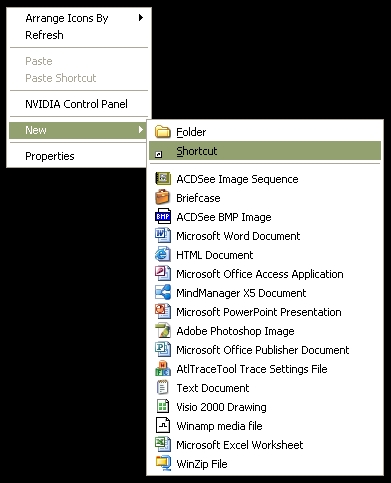
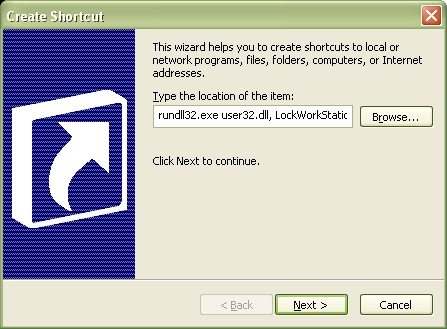
Step 2 – Copy-and-Paste the command line: rundll32.exe user32.dll, LockWorkStation as shown below and press the Next button.
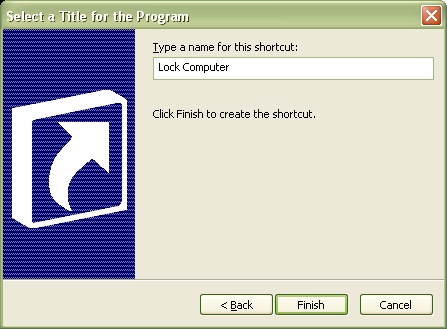
Step 3 – Insert the shortcut name or label <Lock Computer> as shown below. Press the <Finish> button. That’s it.
Step 4 – You should now is an Icon on your desktop labeled <Lock Computer>. Double-click this Icon to LOCK your computer. You will see a pop-up window displaying the Unlock Computer Password Box.

You can also lock a PC via a bat file:
This is similar to a Windows shortcut method. But it’s a DOS version. If you’ve never created a bat (batch) file, but would like to try this method, simply open a new text file (such as with Notepad) and type the following commands:
@echo off
rundll32.exe user32.dll, LockWorkStation
cls
Save the file with a .bat extension, such as Lock.bat, and you’re done. Double click to make the file run.
I found that this command does not work on our Windows 2003 Server; however it did work when the comma is removed.
rundll32.exe user32.dll LockWorkStation
[…] How to lock down the computer via a shortcut: Follow this guide and you’ll learn how to create a computer lockdown shortcut. […]
what is the password to unlock it?
doubt in trying it, there is no no instruction to on how to unlock it
how to open the lock
That or simply do a windows key+L on your keyboard.
Once the system is restarted the shortcut key is not working.
the shortcut created workes, but the shortcut key assigned is disabled or dosent work.
If you’re running window 7 or higher, this works fine. save it as a .bat file and to unlock it – type your domain password in. For example if you went to control panel and created a required password to log into your PC, you would use that password.